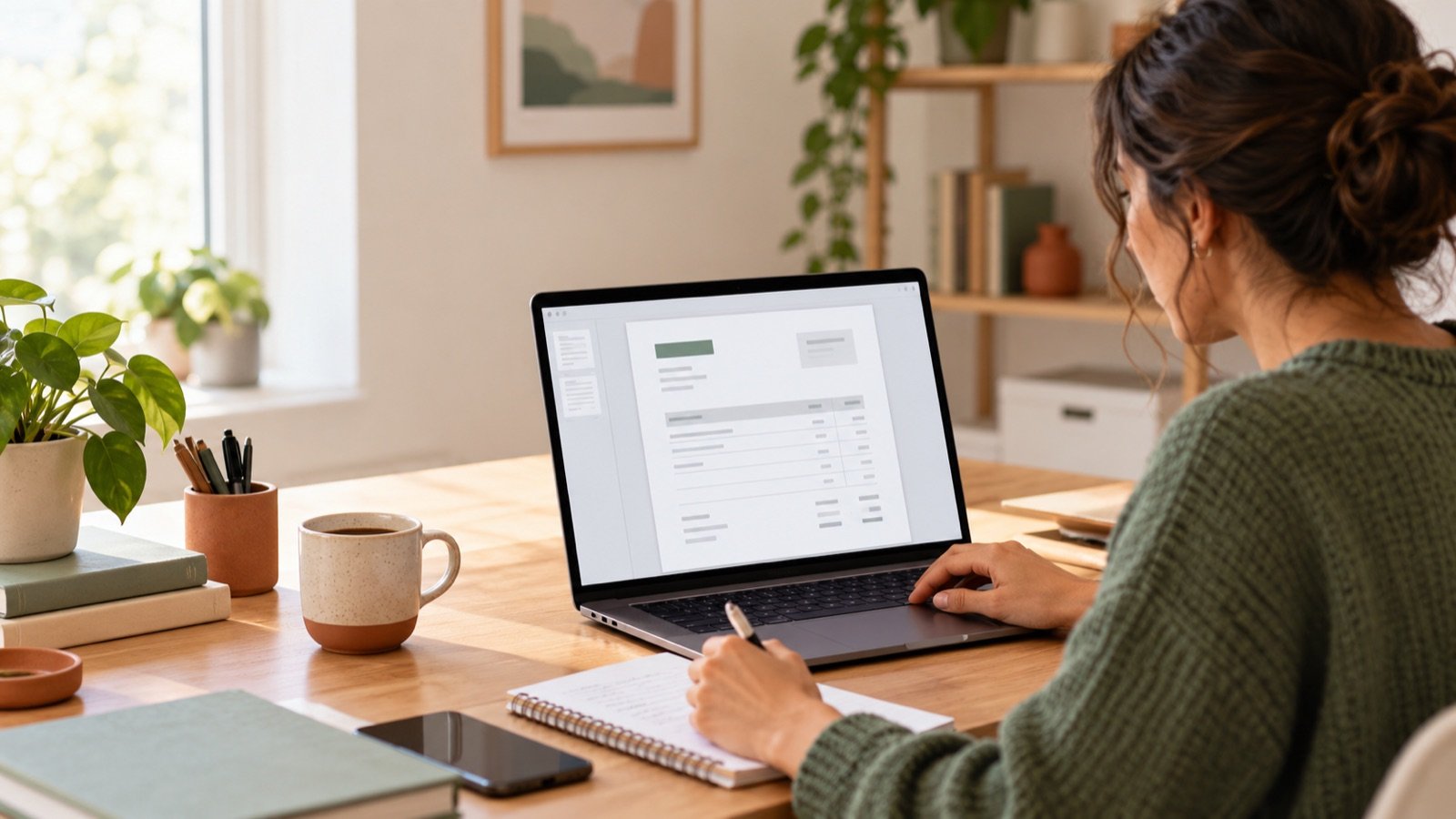
A clear invoice helps your client understand what they’re paying for, when payment is due, and how to pay you. If you’re a freelancer or small business owner, you don’t need complicated accounting software to make a basic invoice. You can create one in Google Docs, save it as a reusable file, and send each completed invoice as a PDF.
The key is to include the right details and make the document easy to scan. This guide walks through what to put on an invoice, how to organize it in Google Docs, and how to turn your document into a simple system you can reuse.
What information should an invoice include?
Before you open Google Docs, gather the details you’ll need. A complete invoice usually includes:
- Your business details: Your name or business name, mailing address if relevant, and a way for the client to contact you.
- Your client’s details: The client’s name or company name, plus any billing contact or address they’ve provided.
- An invoice number: A unique identifier that helps you keep track of invoices and refer to them later.
- The invoice date: The date you send or issue the invoice.
- The payment due date: A specific date gives the client a clear deadline.
- A description of the work: Name each service or product so the client can tell what each charge is for.
- The amount due: Show the price for each item, the subtotal, any applicable taxes or fees, and the final total.
- Payment instructions: Explain which payment methods you accept and how the client can pay.
- Payment terms: State when payment is due and include any other terms you’ve agreed on with the client.
Your exact invoicing and tax obligations can depend on your location and business. Treat this list as a practical starting point, and check which requirements apply to you.
How to make an invoice in Google Docs
1. Start with a blank document or a template
Open a new Google Docs document. You can build the invoice from scratch, or start from a template if you already have a layout you like.
If you’re creating your own, keep the page simple. An invoice is a working document: the client should be able to find the invoice number, due date, itemized charges, and total without searching through decorative elements.
Give the document a useful name, such as “Invoice Master Template.” Keep this clean version separate from completed invoices so you can reuse it without accidentally sending information from an earlier client.
2. Add your business and client information
Place your business name and contact details near the top of the page. Then add a section for the client’s billing information. You can use a two-column table to keep your details and the client’s details aligned.
| From | Bill to |
|---|---|
| Your name or business | Client name or business |
| Your contact details | Client billing contact |
| Your address, if needed | Client billing address, if needed |
Use only the information needed for the invoice and that the client has supplied or asked you to include.
3. Make the invoice easy to identify
Add the word Invoice near the top of the page, then include an invoice number, invoice date, and due date. These details help both you and the client refer to the same document.
Choose a numbering pattern you can maintain. Some businesses use a simple sequence, while others include the year or a client code. The exact format matters less than being consistent and giving each invoice a distinct number. Before sending a new invoice, check your records so you don’t reuse an existing number.
4. Create an itemized table
Use a table to list each product or service separately. A simple invoice table might have these columns:
| Description | Quantity | Rate | Amount |
|---|---|---|---|
| Service or product | Number of units | Price per unit | Line total |
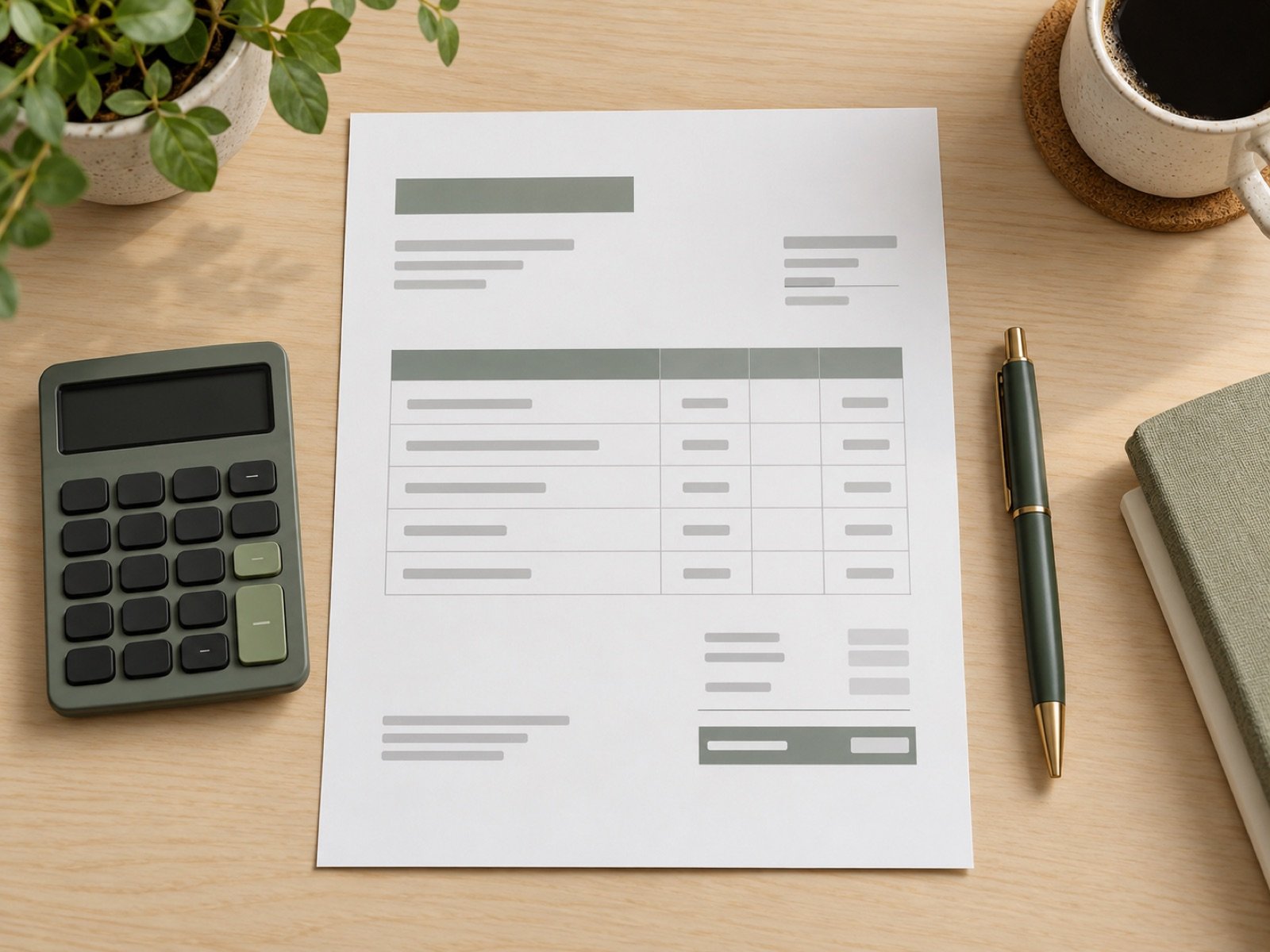
Describe the work in language the client will recognize. For example, instead of writing “project,” name the deliverable or service and, if useful, the period it covers. If you bill by the hour, show the hours and hourly rate. If you charge a fixed fee, identify the service and show the agreed amount.
Separate different services into different rows when that makes the charges clearer. This gives the client a useful record of what the invoice covers and makes it easier to resolve questions about a particular item.
5. Show how you calculated the total
Below the itemized charges, show the subtotal and the final amount due. If taxes, discounts, or other fees apply, list them as separate lines so the calculation is clear. Double-check the arithmetic before sending the invoice.
Make the total due visually easy to spot. You can use bold text or a slightly larger font, but keep the rest of the page readable. Avoid making the client calculate the total from a list of charges.
6. Add payment terms and instructions
Tell the client when payment is due and how to pay. If you accept more than one method, list the options and include the payment details the client needs. Keep these instructions specific enough to act on.
For example, you might state that payment is due by a certain date and identify the accepted payment methods. If you and the client have agreed on other terms, reflect those accurately. Don’t add a fee, deadline, or policy to an invoice unless it matches the agreement and the rules that apply to your business.
7. Save a clean master and make a copy for each client
Once your layout is ready, keep it as the master. For every new invoice, make a separate copy and update the client name, invoice number, dates, itemized charges, and payment details.
This habit reduces mistakes. It also helps preserve a consistent look across your invoices. Before you send a completed copy, check that it doesn’t contain another client’s name, address, project details, or payment information.
Use a simple file-naming pattern to find invoices later. For example, you could include the invoice number and client name in the filename. Store the completed file in a folder where you can retrieve it when you need to follow up or update your records.

8. Review the invoice and send it as a PDF
Before you send the invoice, review it from the client’s point of view. Confirm the names, dates, invoice number, descriptions, quantities, rates, totals, and payment instructions. Make sure the due date matches the terms you agreed on.
When it’s ready, download or share the invoice as a PDF. A PDF is a convenient format for sending a finished document because it preserves the layout for the recipient. Keep your editable Google Docs copy for your records, too.
Common invoice mistakes to avoid
A few quick checks can prevent confusion and slow payments:
- Missing due date: Include a specific payment deadline that matches your agreement.
- Vague descriptions: Name the service, product, or work period clearly.
- Unclear totals: Show the subtotal and final amount due, and double-check the math.
- Reused invoice numbers: Keep a list or log so every invoice has a distinct identifier.
- Old client details: Make a fresh copy of the master and check for leftover information.
- Unclear payment instructions: Tell the client which methods you accept and what information they need to pay.
- Sending the wrong version: Review the final file and confirm it belongs to the intended client before sending.
A faster way to get started
Building an invoice layout from a blank document gives you control, but it can take time to align sections, format a table, and make the page look polished. If you’d rather start with a prepared layout, browse the Templable Etsy shop for the invoice template. Choose the listing that matches your preferred format, then personalize a copy with your business details and the information for each client.
A reusable invoice makes routine billing more organized. Set up the layout once, keep a clean master, and use the same review steps each time you send an invoice.
This article is for general organizational purposes. Check the invoicing and tax requirements that apply to your business and location.